TL;DR
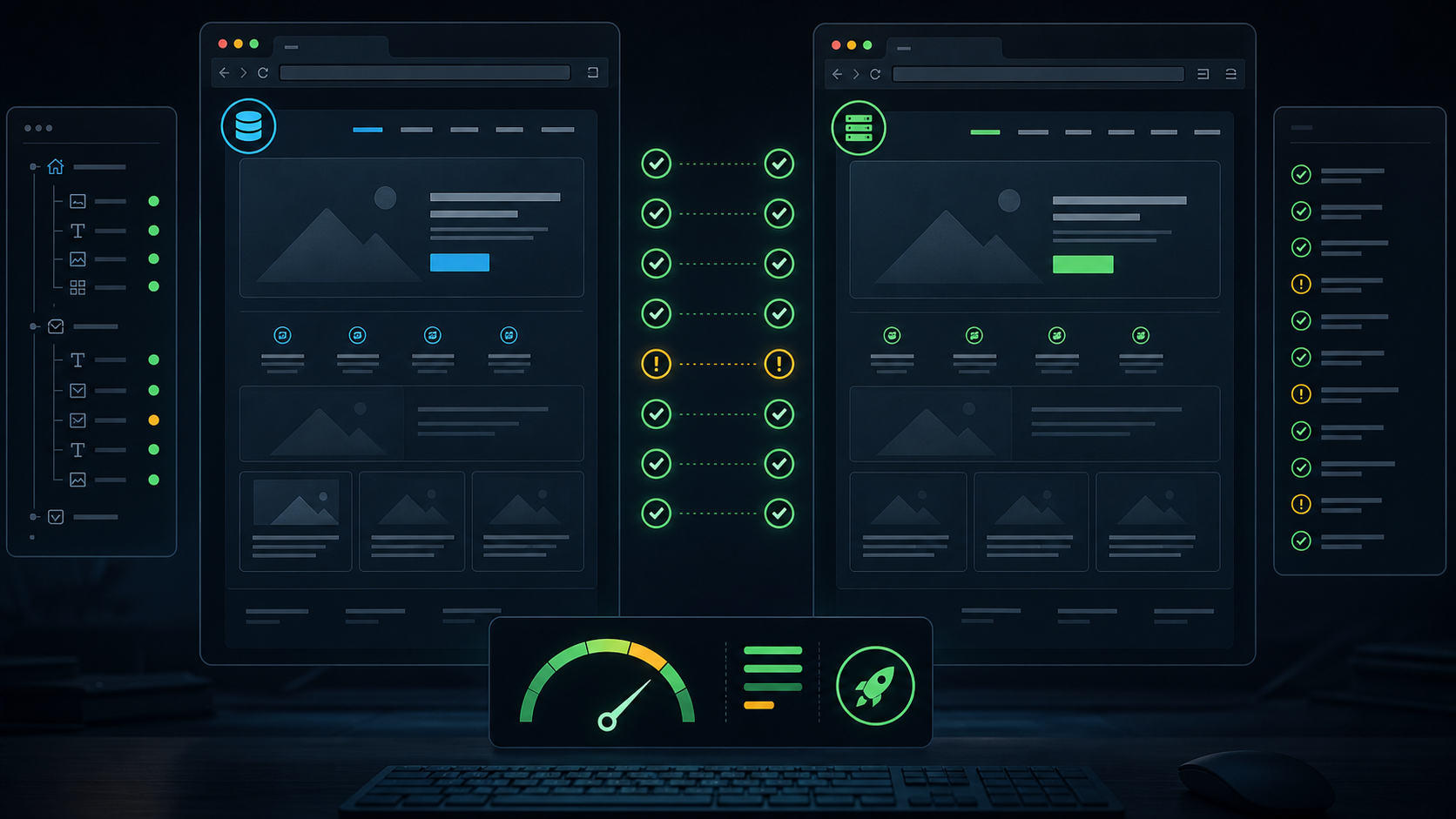
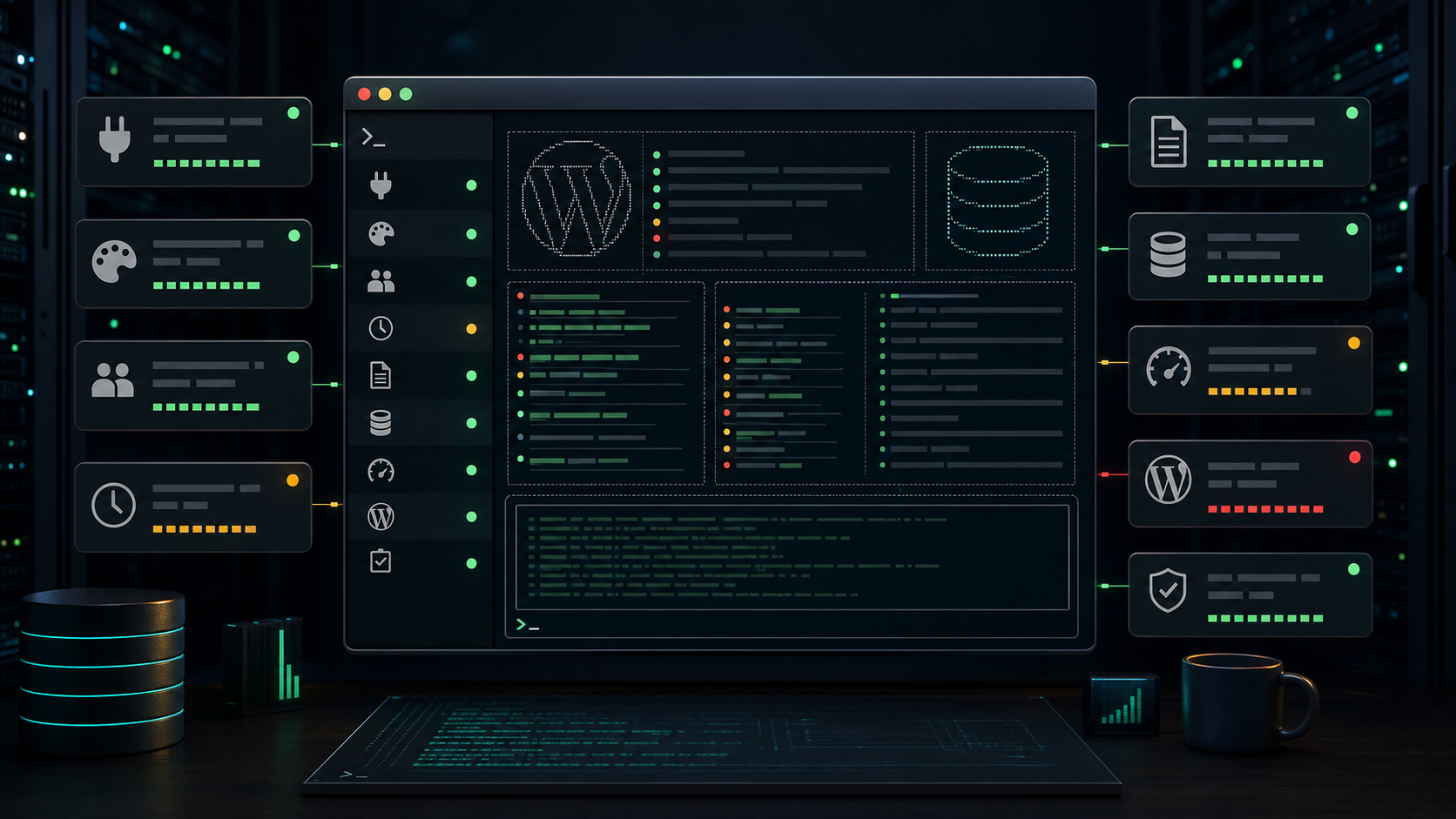
When a WordPress issue is vague, I do not start by changing plugins. I take a fast SSH health snapshot first. The audit checks core, plugin and theme updates, administrator users, WP Cron backlog, debug status, error logs, autoload size, object cache status, and WordPress core integrity. It does not solve every problem. It tells me where the problem is probably not, which is just as useful.
The Setup
Some tickets arrive with a clean error message. Database connection failed. Fatal class missing. Checkout returns 500. Easy to aim at.
Other tickets arrive like this:
The site is slow and sometimes broken.
The admin feels weird.
The customer says it started after updates.
No one knows which updates.
That kind of case needs a snapshot before a theory.
I built a small SSH audit workflow because I got tired of asking the same first questions manually. Is cron stuck? Are there unexpected admins? Is debug mode on in production? Are logs full of fatals? Is object cache missing? Are core files modified?
Answer those first. Then debug.
Step 1: Start From The WordPress Root
The audit only works if it can load WordPress.
php wp-audit.php --path=/home/example/public_html
If the path is wrong, the script should stop early:
Could not find wp-load.php. Run this from a WordPress root or pass --path=/full/path.
That seems basic, but it prevents a bad audit. I would rather fail loudly than scan the wrong directory and trust the output.
Step 2: Check Autoload Size
Autoloaded options are loaded on almost every WordPress request. If that pile gets huge, every page pays for it.
The audit checks the database directly through WordPress:
autoload options: checked
autoload size: measured
status: ok, warn, or error
My usual mental thresholds are simple:
Small: probably fine
Growing: worth checking
Huge: likely part of the slowdown
Autoload bloat is rarely the only problem, but it can turn every normal request into a heavier request. If the case is performance related, this result changes what I inspect next.
Step 3: Check WP Cron Before Blaming Traffic
Stuck cron can look like random WordPress instability.
The audit counts overdue events and schedule buckets:
0 overdue events across 0 schedule buckets. Oldest delay: 0 seconds.
Bad output looks more like this:
37 overdue events across 12 schedule buckets. Oldest delay: 2 hours.
DISABLE_WP_CRON is enabled.
That is not automatically fatal. Some sites disable WP Cron on purpose and run a real system cron.
The question is whether due events are actually running.
wp cron event list
wp cron event run --due-now
If due events pile up, scheduled plugin jobs may never finish. Backups hang. Subscription actions wait. Cleanup tasks do not run. Cache preload queues get stale.
For broader production stability, cron is one of those boring checks that saves time.
Step 4: Check Updates Without Assuming Updates Are The Cause
The audit counts core, plugin, and theme updates:
Core updates: 0, plugin updates: 6, theme updates: 1.
That does not mean "update everything now."
It means I know the risk surface. If a plugin has a known bug or security issue, updates matter. If a site broke five minutes after an update, pending updates may be irrelevant.
I also check stale update metadata. Sometimes WordPress thinks installed code is newer than the update metadata, which usually means a manual upload, a premium plugin updater mismatch, or a version reporting problem.
That is worth knowing before touching anything.
Step 5: Check Administrator Users
Unexpected admin users change the tone of a case fast.
The audit lists administrators and super admins, with email masking by default:
administrator count: 3
source: administrator
email: s***@example.com
I mask emails because audit output gets pasted into tickets. Privacy matters.
If I see a weird admin, I do not delete it instantly. I verify:
Was it created by the customer?
Was it created by a developer?
Was it created during migration?
Did it log in recently?
Does it match any known support account?
If it does not belong, the case may be security related. Then I move into the malware workflow. I wrote about that deeper cleanup process in Cleaning a WordPress Site Infected with WSO Web Shell and Database Stored Malware.
Step 6: Read Logs With Noise Filtering
Raw WordPress logs can be huge and repetitive.
The audit checks common locations:
/public_html/error_log
/public_html/wp-admin/error_log
/public_html/wp-content/debug.log
Then it groups important blocks:
fatal blocks: 2
warning blocks: 14
info blocks: 5
noise lines filtered: 183
Fatal errors get priority. Warnings are context. Notices are usually background unless they repeat hard enough to fill disk or break AJAX responses.
The goal is not to read every line. The goal is to find the first fatal that matches the reported time window.
Step 7: Verify Core Integrity
Core file changes are not always malware. Sometimes a developer edits core. Sometimes a host writes an error_log. Sometimes a migration leaves extra files.
Still, I want the answer.
wp core verify-checksums
Clean output:
Success: WordPress installation verifies against checksums.
Bad output:
Warning: File does not verify against checksum: wp-includes/version.php
Error: WordPress installation does not verify against checksums.
The audit separates modified core files from harmless extras where possible. Modified PHP inside core deserves attention. A stray error_log is usually just cleanup.
This check is especially useful when a site behaves strangely after a "developer fixed something" but no one has a changelog.
Step 8: Summarize Before Acting
The final summary is the point.
I want a count of:
ok
info
warn
error
Then I decide the next path:
Cron errors: inspect scheduled jobs
Fatal logs: reproduce the fatal path
Unexpected admins: start security review
Modified core: verify files and restore clean core
Huge autoload: inspect wp_options
Missing object cache: check performance impact
Pending updates only: do not panic, plan updates safely
This keeps me from making random changes.
If the audit points toward database trouble, I use the database workflow from Fix Error Establishing a Database Connection in WordPress. If it points toward a migration issue, I check file copy and URL replacement paths before plugins.
What This Audit Does Not Do
It does not replace debugging. It does not prove the site is clean. It does not tell you whether a premium plugin has a logic bug. It does not inspect every custom table.
It gives you the first map.
That is enough to avoid the worst support habit: changing the easiest plugin setting and hoping the problem disappears.
FAQ
Is this the same as Site Health in wp admin?
No. Site Health is useful, but SSH lets you inspect logs, cron, checksums, admin users, and database signals even when wp admin is slow or partially broken.
Should I run updates immediately after an audit?
Not automatically. Updates are a risk signal, not always the cause. Take a backup, understand the reported issue, and update in a controlled order.
Why check WP Cron during unrelated issues?
Because stuck cron creates delayed and confusing symptoms. Backups, cleanup jobs, subscriptions, scheduled posts, and cache tasks can all depend on it.
Is checksum failure always malware?
No. It means files differ from the official WordPress release. That can be malware, manual edits, incomplete updates, or harmless extra files. Review the exact paths.
Why mask admin emails?
Audit output often gets pasted into support tickets. Masking emails keeps the report useful without exposing private account data unnecessarily.
What is the fastest takeaway?
Before changing anything, collect a health snapshot. Logs, cron, admins, updates, autoload, cache, and integrity usually tell you which direction to debug next.