TL;DR
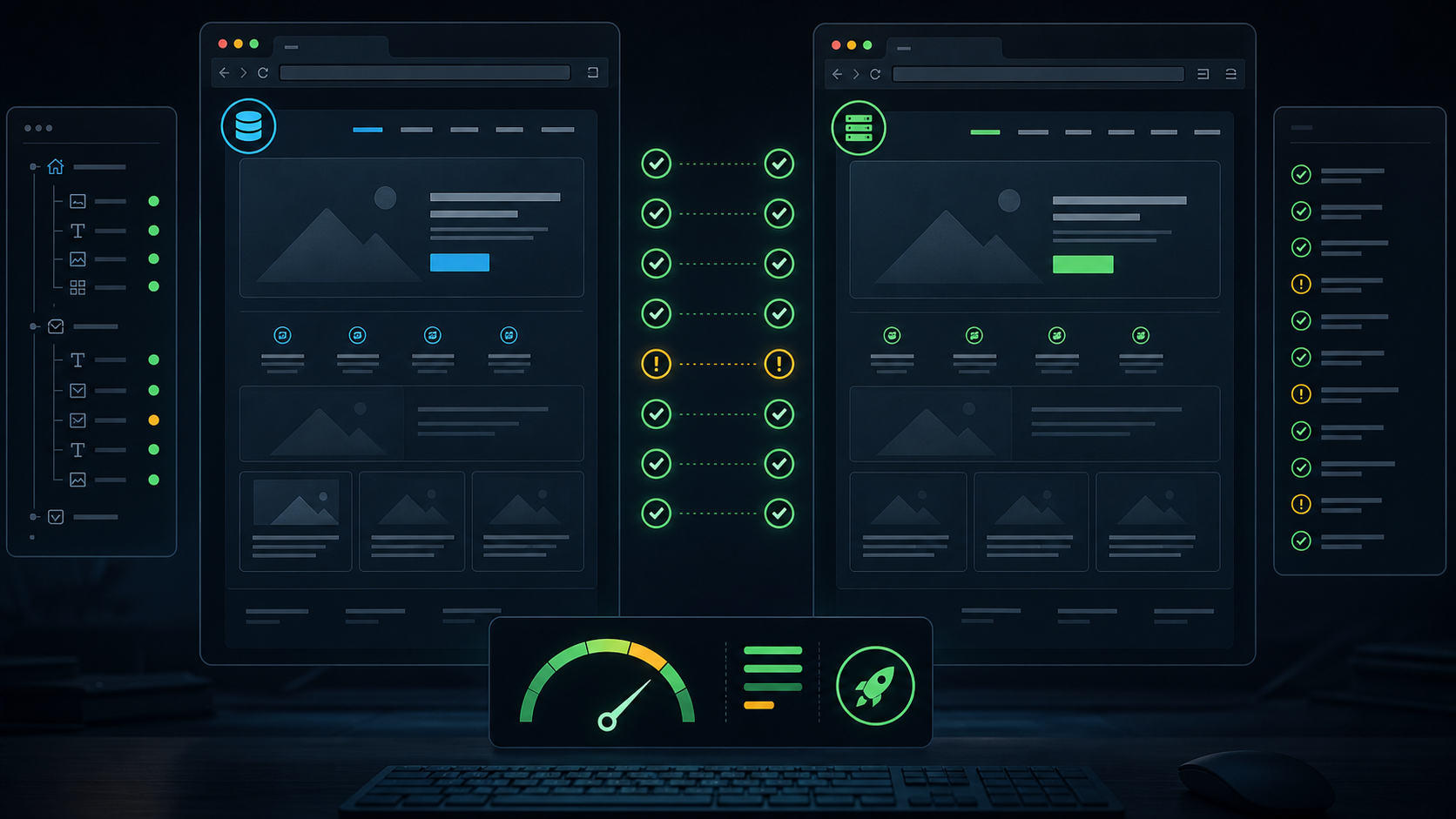
A staging copy can look fine at a glance and still be unsafe to launch. I compare staging and live with browser snapshots, not only screenshots. In this case the live snapshot was 22,179 bytes and the staging snapshot was 22,516 bytes. The page structure matched, the headings matched, the navigation matched, and the main difference was expected: production links pointed to the live domain while staging links pointed to the temporary domain. That is the kind of difference you want to see before a launch.
The Setup
I had a WordPress site copied to staging for review. The customer wanted to know whether the staging version matched production closely enough to continue the launch work.
At first glance, both pages looked the same. Same logo area. Same hero. Same main heading. Same navigation. Same brand showcase. Same feature blocks.
But "looks the same" is not a migration QA method. It is a feeling.
I wanted something I could compare line by line.
Step 1: Capture Live And Staging With A Browser
I used browser snapshots because they expose the page structure in a way screenshots do not. A screenshot can tell you the page looks similar. A snapshot tells you whether headings, links, buttons, and image labels are actually present.
playwright-cli snapshot
The live capture was:
live snapshot: 22179 bytes
The staging capture was:
staging snapshot: 22516 bytes
That small difference was fine. Staging had a different domain in its URLs, so I expected a few extra characters.
What I did not want to see was a tiny staging file, missing sections, empty navigation, or a large unexpected content shift.
Step 2: Compare The Header First
The header is where migration mistakes show up fast.
Live:
link: https://www.example.com
brand: Example Themes
tagline: Premium WordPress Themes
nav: Themes, Pricing, Services, Support, Account, Get Started
Staging:
link: https://staging.example.test
brand: Example Themes
tagline: Premium WordPress Themes
nav: Themes, Pricing, Services, Support, Account, Get Started
That matched.
The domain difference was expected. The content difference was zero.
This is the point where I do not care about pixel perfection yet. I care that the user can navigate and that the staging copy did not lose menu items during the move.
Step 3: Compare The Hero Content
The main heading matched on both:
The best Premium Magazine WordPress Themes
The paragraph matched too:
We have developed some of the most popular magazine themes for WordPress.
The primary calls to action were present:
Browse Themes
View Pricing
That told me the homepage content survived the migration.
If this had failed, I would have checked the database import, page builder data, theme options, and serialized URLs. But it did not fail.
Same hero. Same copy. Same buttons.
Step 4: Check Internal Link Behavior
Internal links are easy to miss because the page can look correct while sending users to the wrong domain.
The live page used live URLs:
https://www.example.com/pricing/
https://www.example.com/support/
https://www.example.com/account/
The staging page used staging URLs:
https://staging.example.test/pricing/
https://staging.example.test/support/
https://staging.example.test/account/
That was correct for staging.
The relative links also mattered:
/themes/
/pricing/
Those are safer across environments because they follow the current host. Absolute links need more attention during a final domain swap.
If you are moving a WordPress site and the domain changes, this is where search replace mistakes usually show up. For Multisite, there is another layer entirely. I wrote about that in WordPress Multisite Shows Error Establishing a Database Connection After Migration, But the Database Is Fine.
Step 5: Check Image Labels And Repeated Sections
The brand showcase matched:
Forbes Brasil
FC St. Pauli Boxing
imgur blog
NYPD News
The feature section matched:
Quality over Quantity
SEO Friendly
Optimized for speed
This matters because homepage sections often come from repeaters, custom fields, shortcodes, widgets, or page builder modules. A normal screenshot may hide a missing image alt value or a broken link behind a loaded placeholder.
The snapshot made the repeated content visible.
Step 6: Decide Which Differences Are Expected
Not every difference is a problem.
Expected differences:
Production domain changed to staging domain
Account links point to staging account paths
Cache generated asset URLs may differ
Snapshot byte size differs slightly
Unexpected differences:
Missing nav items
Buttons pointing back to production
Hero heading changed
Images missing accessible names
Sections missing entirely
Pricing link opens live checkout from staging
The staging copy passed the first group and avoided the second group.
That is a good sign.
Step 7: Do The Human Check Last
After the structured comparison, I still looked at the screenshots.
Screenshots catch visual problems that snapshots cannot:
Spacing
Broken image dimensions
Font changes
Header overlap
Unexpected popups
Mobile menu issues
Color or contrast changes
But I prefer doing this after the structural checks. Otherwise I waste time staring at pixels before I know whether the page even points to the right place.
If files were copied with rsync, I also check exclusions before launch. A staging site can look fine until one plugin class loads on a deeper page. I covered that trap here: The rsync Exclude Trap That Breaks WordPress Plugin Migrations.
My Launch QA Minimum
For a normal WordPress marketing site, I want this before launch:
Homepage structure matches
Navigation matches
Hero content matches
Primary calls to action work
Internal links use the correct environment
Images load and have sane labels
Forms are tested
Checkout or account paths are tested if present
Mobile menu is tested
No production only scripts are firing on staging
That is not a full QA department checklist. It is the practical minimum before you tell someone the copy is ready.
FAQ
Is a screenshot enough for staging QA?
No. A screenshot is useful, but it does not show link targets, accessible names, missing semantic elements, or hidden structural changes. Use screenshots and snapshots together.
Should staging links point to production?
Usually no. Staging should stay on the staging host unless a specific external service requires production URLs. Checkout, account, and form actions deserve extra attention.
Why compare file size?
File size is a quick smell test. A staging snapshot that is close to live is not proof, but a huge difference can point to missing sections, blocked rendering, or a wrong template.
What is the most common migration QA miss?
Absolute URLs. The page looks correct, but a button, image, form action, or account link still points to the old production domain.
Should I test mobile before launch?
Yes. Desktop parity is not enough. Mobile menus, sticky headers, cookie banners, and page builder breakpoints often fail even when desktop looks perfect.
What is the fastest takeaway?
Compare live and staging structurally first. Headings, links, buttons, repeated sections, and domains tell you whether the migration is safe enough for visual review.