
If you manage WordPress sites long enough, you will see this screen:
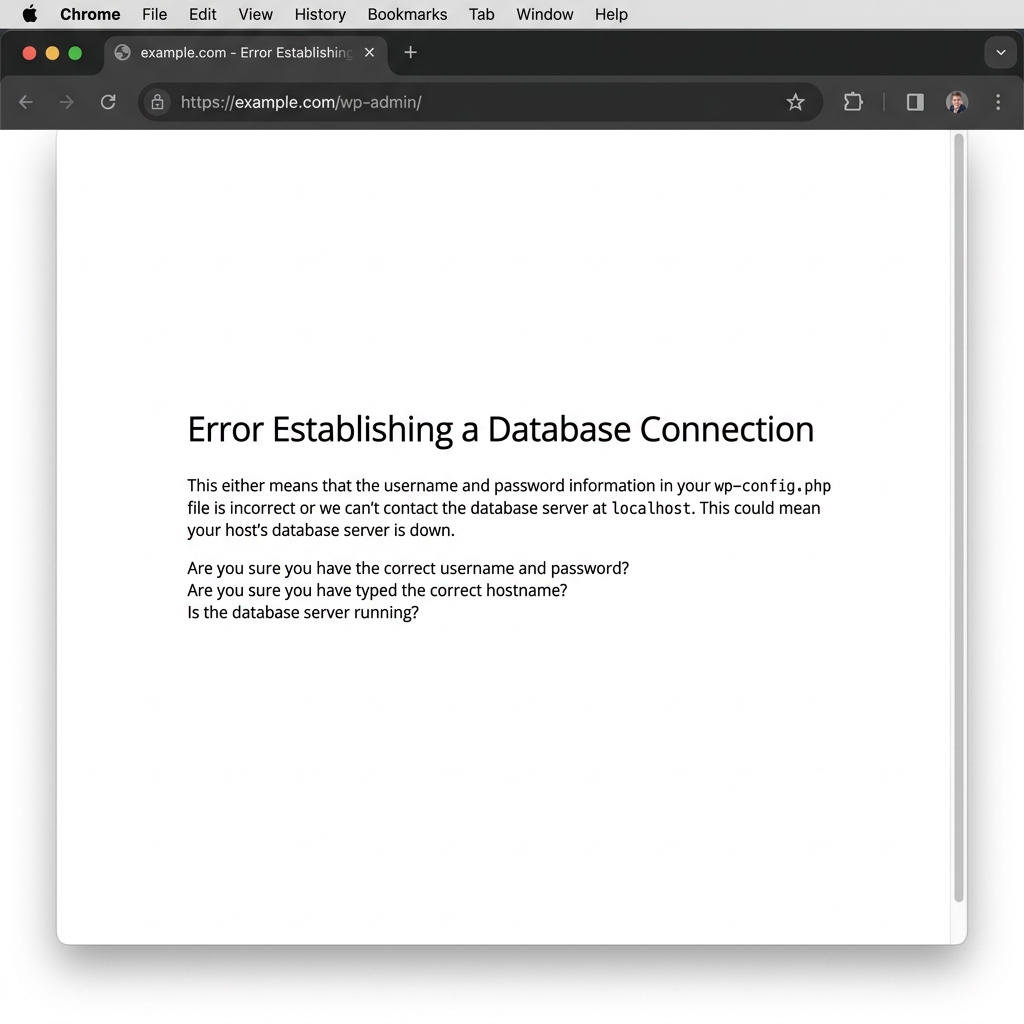 Error Establishing a Database Connection
"Error Establishing a Database Connection" is the single most common WordPress emergency. It means WordPress tried to connect to your MySQL/MariaDB database and failed. No database means no site. Your visitors will simply see a blank white page.
I have resolved this issue hundreds of times across Rocket.net, Hostinger, and private VPS environments. This guide is the exact workflow I follow every time.
Why This Happens
The error has four root causes. In order of frequency:
- Wrong database credentials in
wp-config.php. Someone may have changed the password, or the config was overwritten during a migration - MySQL/MariaDB service is down. The database server likely crashed due to memory pressure, disk space, or a configuration error
- Corrupted database tables. This usually affects
wp_optionsorwp_postsafter a hard server crash or interrupted write - Database server is overloaded. This happens due to too many concurrent connections, often caused by a misbehaving plugin or traffic spike
Step 1: Verify Database Credentials
Open your wp-config.php file. It is in the root of your WordPress installation:
cat wp-config.php | grep -A 1 'DB_'
You will see something like this:
define('DB_NAME', 'wordpress_db');
define('DB_USER', 'wp_user');
define('DB_PASSWORD', 'your_password_here');
define('DB_HOST', 'localhost');
Now test the connection manually using the same credentials:
mysql -u wp_user -p'your_password_here' -h localhost wordpress_db
If this fails, the credentials are wrong. Common causes:
- Hosting provider reset the password during a migration
- Someone edited
wp-config.phpand introduced a typo - The database user was deleted or lost privileges
Fix: Log into your hosting panel (cPanel, Plesk, or phpMyAdmin) and verify or reset the database user password. Then update wp-config.php to match.
Step 2: Check if MySQL is Running
If the credentials are correct but the connection still fails, the database service may be down:
sudo systemctl status mysql
Or for MariaDB:
sudo systemctl status mariadb
If the service is stopped or crashed, restart it:
sudo systemctl restart mysql
Check the error log to understand why it crashed:
sudo tail -50 /var/log/mysql/error.log
Common crash reasons:
- Out of memory (OOM): the server ran out of RAM and the kernel killed mysqld
- Disk full: no space left for temporary tables or binary logs
- Too many connections: more than
max_connectionsactive queries
If MySQL keeps crashing after restart, you likely have a memory issue. Check with
free -hand consider increasing swap or reducinginnodb_buffer_pool_sizein your MySQL config.
Step 3: Repair Corrupted Tables
If MySQL is running and credentials are correct, the database tables themselves may be corrupted. This is common after a hard server reboot or power loss.
First, add this line to your wp-config.php:
define('WP_ALLOW_REPAIR', true);
Then visit this URL in your browser:
https://yoursite.com/wp-admin/maint/repair.php
WordPress will show you a list of tables and offer to repair them. Click "Repair and Optimize Database".
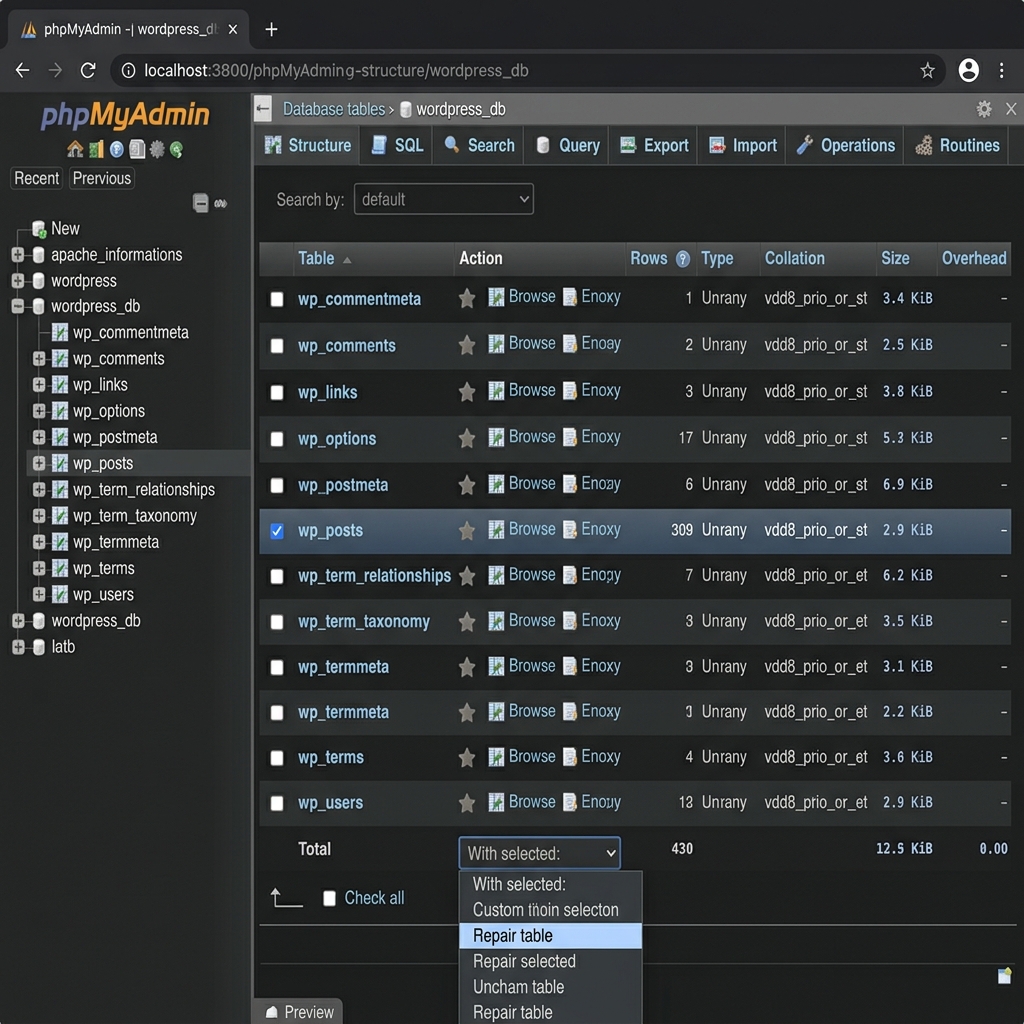 phpMyAdmin showing WordPress database tables ready for repair
You can also repair tables directly from the command line:
mysqlcheck -u wp_user -p --repair wordpress_db
Or repair specific tables:
mysqlcheck -u wp_user -p --repair wordpress_db wp_options wp_posts
Important: Remove WP_ALLOW_REPAIR from wp-config.php after you finish. This endpoint requires no authentication, so leaving it enabled is a security risk.
Step 4: Check Server Resources
If the database is running and tables are clean, the issue may be resource exhaustion:
# Check disk space
df -h

# Check memory
free -h

# Check active MySQL connections
mysqladmin -u root -p processlist
Disk full? Clear old logs, backups, or binary logs:
# Find large files
find /var -type f -size +100M -exec ls -lh {} \;

# Purge old binary logs (if using replication)
mysql -u root -p -e "PURGE BINARY LOGS BEFORE NOW() - INTERVAL 3 DAY;"
Memory pressure? Check if other processes are consuming resources:
top -o %MEM
Step 5: Check Plugin and Theme Conflicts
Sometimes a plugin opens persistent database connections or runs queries that lock tables. If the site was working before a recent change:
# Disable all plugins via CLI
wp plugin deactivate --all --path=/var/www/html
If the site comes back, reactivate plugins one at a time:
wp plugin activate plugin-name --path=/var/www/html
Common culprits:
- WooCommerce with large product catalogs and no object caching
- Broken caching plugins that corrupt the
wp_optionsautoload table - Security plugins that log every request to the database
Prevention Checklist
After you fix the immediate issue, set up these safeguards:
- Automated backups: daily database dumps to offsite storage
- Monitoring: set up uptime monitoring that alerts you within 60 seconds of downtime
- MySQL tuning: set
innodb_buffer_pool_sizeto 70% of available RAM on dedicated servers - Connection limits: configure
max_connectionsappropriately (default 151 is often too low for busy WooCommerce sites) - WP-CLI cron: disable
wp-cron.phpand use a real system cron to avoid overlapping requests:
# Add to crontab
*/5 * * * * cd /var/www/html && wp cron event run --due-now --quiet
And add this to wp-config.php:
define('DISABLE_WP_CRON', true);
When to Escalate
Contact your hosting provider if:
- MySQL keeps crashing despite having adequate resources
- You see replication errors in the MySQL error log
- The database server is on a separate host and you cannot access it
- The error appears intermittently under load (may need query optimization or read replicas)
This workflow resolves the "Error Establishing a Database Connection" issue in 95% of cases. The remaining 5% usually involve infrastructure-level problems such as corrupted InnoDB tablespace, hardware failure, or network issues between the web server and database server. These usually require your hosting provider's intervention.
If you are stuck, reach out for help. I have resolved this exact issue hundreds of times and can usually identify the root cause within minutes.